> ## Documentation Index
> Fetch the complete documentation index at: https://help.owlery.ai/llms.txt
> Use this file to discover all available pages before exploring further.
# Edit a Load Number
> How to correct a load number after accepting a tender so it matches the shipment ID on your invoice.
The **Load Number** you enter when accepting a tender needs to match the shipment ID you'll use when invoicing. If you entered the wrong number — a typo, the customer's order number, a stale reference, or the wrong load from your TMS — you can update it after the fact from the load itself.
Owlery matches invoices to loads by Load Number. If your invoice's shipment ID doesn't match the Load Number on the load, the invoice won't attach to the right shipment and may be rejected or delayed.
Go to **Shipments (Loads)** in the left sidebar, find the load, and click the row to open the load drawer.
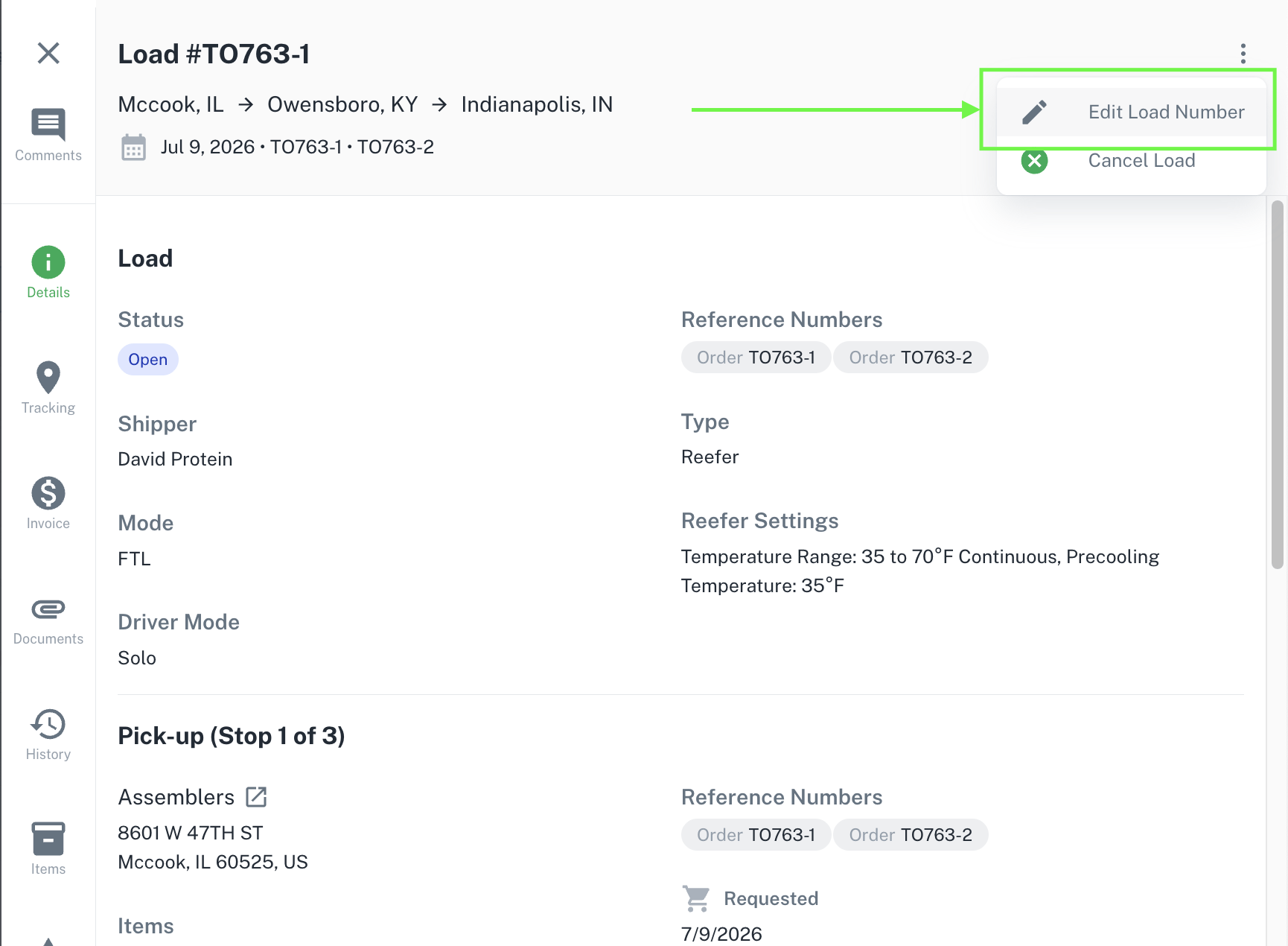
In the top-right of the load drawer, click the **three-dot menu** (⋮) next to the load number.
Choose **Edit Load Number** from the dropdown.
Type the correct Load Number — the same shipment ID you'll use on your invoice — and confirm. The load updates immediately.
 You should ideally update any Load Number **before** you submit the invoice. Once the number matches, invoicing works the same as any other load — see [Submit an Invoice](/carriers/submit-an-invoice).