> ## Documentation Index
> Fetch the complete documentation index at: https://help.owlery.ai/llms.txt
> Use this file to discover all available pages before exploring further.
# Submit an Invoice
> How to invoice shippers in Owlery — manually for a single load or in bulk via CSV upload.
There are two ways to create invoices directly in Owlery: individually from a load, or in bulk by uploading a CSV file. Choose the option that best fits your workflow.
**Setting up EDI** lets you automate invoice creation, provided your company supports EDI integrations.
Uploading a PDF is not the same as creating an invoice. Owlery needs structured line-item data to process an invoice — a PDF alone won't do it.
Go to **Shipments (Loads)**, find the load, and click the **Invoice** tab in the drawer.
Click **Add Line Item** and fill in:
* **Category** (required)
* **Description** (optional)
* **Due Date** (required)
* **Total** (required)
Repeat for each charge on the load.
Click **Create Invoice**, confirm or enter your **Invoice Number**, and submit. The invoice is sent to the shipper right away.
Need to make a correction? Finalized invoices can be edited from the **Invoices** page under **Finances** as long as the status is `Unpaid` or `Disputing`.
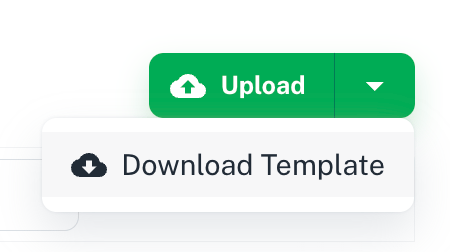
Go to **Invoices** under **Finances**. Click the dropdown arrow next to the **Upload** button and select **Download Template**.
 Open the template and fill in the required fields:
* Invoice Number
* PRO/Load Number
* Bill to Account
* Invoice Date
* Shipper and Consignee location info
* Line-Item Total
To add multiple charges to one invoice, use multiple rows with the same Invoice Number.
Back in Owlery, click **Upload**, select a **Shipper**, attach your file, and click **Validate CSV**. If there are errors, fix them in your file and resubmit.
Once validation passes, click **Submit Invoices**. Invoices are sent to the shipper and start in `Needs Review` status.
Need to make a correction? Finalized invoices can be edited from the **Invoices** page as long as the status is `Unpaid` or `Disputing`.
The **Shipment ID** you send on the EDI 210 (segment `B3-03`) must match the **Load Number** in Owlery exactly. If it doesn't match, the shipper won't be able to tie the invoice back to the load, and payment is likely to be significantly delayed.
If you entered the wrong Load Number when accepting the tender, update it to unblock invoicing — see [Edit a Load Number](/carriers/edit-a-load-number).
If an EDI invoice was submitted with the wrong Shipment ID, with the correct one — just keep the same Invoice Number (segment `B3-02`) so it processes as an update.
Review EDI Guidelines for 210: [https://owlery.ai/dashboard/edi-guidelines](https://owlery.ai/dashboard/edi-guidelines)
Complete Test Scenario for 210: [https://owlery.ai/dashboard/edi-test](https://owlery.ai/dashboard/edi-test)
Reach out to [support@owlery.ai](mailto:support@owlery.ai) for assistance
Only one invoice per load — if you try to submit a duplicate, Owlery will flag it.
Open the template and fill in the required fields:
* Invoice Number
* PRO/Load Number
* Bill to Account
* Invoice Date
* Shipper and Consignee location info
* Line-Item Total
To add multiple charges to one invoice, use multiple rows with the same Invoice Number.
Back in Owlery, click **Upload**, select a **Shipper**, attach your file, and click **Validate CSV**. If there are errors, fix them in your file and resubmit.
Once validation passes, click **Submit Invoices**. Invoices are sent to the shipper and start in `Needs Review` status.
Need to make a correction? Finalized invoices can be edited from the **Invoices** page as long as the status is `Unpaid` or `Disputing`.
The **Shipment ID** you send on the EDI 210 (segment `B3-03`) must match the **Load Number** in Owlery exactly. If it doesn't match, the shipper won't be able to tie the invoice back to the load, and payment is likely to be significantly delayed.
If you entered the wrong Load Number when accepting the tender, update it to unblock invoicing — see [Edit a Load Number](/carriers/edit-a-load-number).
If an EDI invoice was submitted with the wrong Shipment ID, with the correct one — just keep the same Invoice Number (segment `B3-02`) so it processes as an update.
Review EDI Guidelines for 210: [https://owlery.ai/dashboard/edi-guidelines](https://owlery.ai/dashboard/edi-guidelines)
Complete Test Scenario for 210: [https://owlery.ai/dashboard/edi-test](https://owlery.ai/dashboard/edi-test)
Reach out to [support@owlery.ai](mailto:support@owlery.ai) for assistance
Only one invoice per load — if you try to submit a duplicate, Owlery will flag it.