> ## Documentation Index
> Fetch the complete documentation index at: https://help.owlery.ai/llms.txt
> Use this file to discover all available pages before exploring further.
# Invoices
> Review what carriers bill against what you agreed to pay, then approve or dispute.
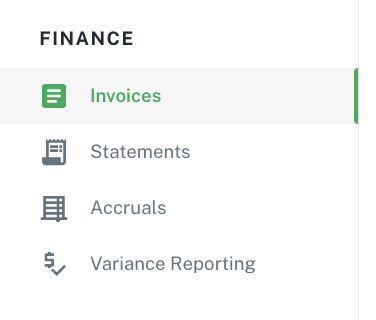
**Where to find it:** `Dashboard → Finance → Invoices`
Review what carriers bill against what you agreed to pay, then approve or dispute.
 ### The review workflow
Tabs follow the payment stages. Start your day on **Needs Review**, sorted by payment due date.
| Tab | What it means |
| ------------------- | ------------------------------------------------------------------------------------------- |
| **Needs Review** | Submitted by the carrier and waiting on your decision. Carriers see this as *Under Review*. |
| **Approved** | You've approved the invoice for payment, but payment hasn't been initiated yet. |
| **Disputing** | You've disputed the invoice. Carriers see this as *Disputed*. |
| **Payment Created** | A payment has been initiated but hasn't fully cleared. |
| **Paid** | Payment has cleared. |
| **Archived** | Invoices you've hidden from the active views. Shipper-only tab. |
The number badge on each tab shows how many invoices are currently in that state.
### Reading the comparison
* **Awarded** is what you agreed to pay; **Actual** is what the carrier billed.
* **Difference** is color-coded — **green** if billed under, **red** if over.
* Line items show exactly where charges diverged.
### Approve or dispute
* **Approve** with an optional label and reason for your records.
* **Dispute** with a label and reason — the carrier gets a daily digest of what was sent back, and both the label and reason are visible to them in their invoice view.
* Select multiple rows to approve in bulk.
### What carriers see when you dispute
When you dispute an invoice, the label and reason you enter are shared directly with the carrier in three places:
* The **Dispute Label** and **Dispute Reason** columns in their invoice table.
* A red *"Why this invoice is disputed"* alert at the top of the invoice detail drawer.
* The **History** tab of the invoice drawer, which shows the full status-change timeline.
Carriers can't see internal fields like tags, GL codes, auto-batch status, accounting sync records, or who on your team took each action.
### Automating decisions
* **Auto-Decision Rules** can approve or dispute invoices that clearly match (or miss) your thresholds.
* Set default approve/dispute rules, with per-carrier overrides where needed.
* Rules evaluate checks (any subset can be enabled), for example:
* **Quote threshold** — is the invoice total within the allowed variance of the awarded quote?
* **Missing POD** — is a proof of delivery document on file for the load?
* Anything that meets neither rule or issues that are expected to be addressed internally stays in **Needs Review** for you. For example:
* **ERP quote match** — does the invoiced amount match the ERP-recorded quote?
* Auto-disputed invoices are labeled with reasons like *Rate variance*, *Missing POD* — carriers see these same labels.
### When a carrier resubmits an invoice
Carriers can correct and resubmit an invoice as long as it's still in **Needs Review** or **Disputing**. Once an invoice moves to **Approved**, **Payment Created**, or **Paid**, it's locked — the carrier can't overwrite it, and they'll need to contact you to move it back before they can resubmit.
Resubmissions arrive through the same channel the carrier used originally — EDI 210, the external API, CSV upload, or an edit to a manually created invoice in Owlery — and are matched to the existing invoice by invoice number.
When a resubmission comes in on an unlocked invoice:
1. **The existing invoice is replaced in place.** Line items, totals, load numbers, invoice date, party info, and reference numbers are all updated. The invoice number and payment status stay the same, so a disputed invoice remains on the **Disputing** tab.
2. **Auto-Decision Rules re-run immediately** against the updated data. If the correction fixes the issue (e.g., the total now falls within your threshold, or a missing POD is now on file), the invoice can auto-approve or land back in **Needs Review** within seconds.
3. **Exceptions refresh.** Price variance, missing POD, and ERP mismatch flags are recomputed.
4. **You're notified.** Webhooks fire and the invoice reappears in your workflow with its new values.
Auto-Decision Rules only re-evaluate invoices that were **auto-disputed**. If someone on your team manually disputed an invoice, a carrier resubmission updates the invoice data but leaves it in **Disputing** for you to review — the system won't override a human decision.
### Finding paid vs. disputed invoices
* **Paid invoices:** Open the **Paid** tab. Payment Created shows invoices where payment is in flight but not yet cleared.
* **Disputed invoices:** Open the **Disputing** tab. Click any row to see the dispute label, reason, and full history in the drawer.
### The review workflow
Tabs follow the payment stages. Start your day on **Needs Review**, sorted by payment due date.
| Tab | What it means |
| ------------------- | ------------------------------------------------------------------------------------------- |
| **Needs Review** | Submitted by the carrier and waiting on your decision. Carriers see this as *Under Review*. |
| **Approved** | You've approved the invoice for payment, but payment hasn't been initiated yet. |
| **Disputing** | You've disputed the invoice. Carriers see this as *Disputed*. |
| **Payment Created** | A payment has been initiated but hasn't fully cleared. |
| **Paid** | Payment has cleared. |
| **Archived** | Invoices you've hidden from the active views. Shipper-only tab. |
The number badge on each tab shows how many invoices are currently in that state.
### Reading the comparison
* **Awarded** is what you agreed to pay; **Actual** is what the carrier billed.
* **Difference** is color-coded — **green** if billed under, **red** if over.
* Line items show exactly where charges diverged.
### Approve or dispute
* **Approve** with an optional label and reason for your records.
* **Dispute** with a label and reason — the carrier gets a daily digest of what was sent back, and both the label and reason are visible to them in their invoice view.
* Select multiple rows to approve in bulk.
### What carriers see when you dispute
When you dispute an invoice, the label and reason you enter are shared directly with the carrier in three places:
* The **Dispute Label** and **Dispute Reason** columns in their invoice table.
* A red *"Why this invoice is disputed"* alert at the top of the invoice detail drawer.
* The **History** tab of the invoice drawer, which shows the full status-change timeline.
Carriers can't see internal fields like tags, GL codes, auto-batch status, accounting sync records, or who on your team took each action.
### Automating decisions
* **Auto-Decision Rules** can approve or dispute invoices that clearly match (or miss) your thresholds.
* Set default approve/dispute rules, with per-carrier overrides where needed.
* Rules evaluate checks (any subset can be enabled), for example:
* **Quote threshold** — is the invoice total within the allowed variance of the awarded quote?
* **Missing POD** — is a proof of delivery document on file for the load?
* Anything that meets neither rule or issues that are expected to be addressed internally stays in **Needs Review** for you. For example:
* **ERP quote match** — does the invoiced amount match the ERP-recorded quote?
* Auto-disputed invoices are labeled with reasons like *Rate variance*, *Missing POD* — carriers see these same labels.
### When a carrier resubmits an invoice
Carriers can correct and resubmit an invoice as long as it's still in **Needs Review** or **Disputing**. Once an invoice moves to **Approved**, **Payment Created**, or **Paid**, it's locked — the carrier can't overwrite it, and they'll need to contact you to move it back before they can resubmit.
Resubmissions arrive through the same channel the carrier used originally — EDI 210, the external API, CSV upload, or an edit to a manually created invoice in Owlery — and are matched to the existing invoice by invoice number.
When a resubmission comes in on an unlocked invoice:
1. **The existing invoice is replaced in place.** Line items, totals, load numbers, invoice date, party info, and reference numbers are all updated. The invoice number and payment status stay the same, so a disputed invoice remains on the **Disputing** tab.
2. **Auto-Decision Rules re-run immediately** against the updated data. If the correction fixes the issue (e.g., the total now falls within your threshold, or a missing POD is now on file), the invoice can auto-approve or land back in **Needs Review** within seconds.
3. **Exceptions refresh.** Price variance, missing POD, and ERP mismatch flags are recomputed.
4. **You're notified.** Webhooks fire and the invoice reappears in your workflow with its new values.
Auto-Decision Rules only re-evaluate invoices that were **auto-disputed**. If someone on your team manually disputed an invoice, a carrier resubmission updates the invoice data but leaves it in **Disputing** for you to review — the system won't override a human decision.
### Finding paid vs. disputed invoices
* **Paid invoices:** Open the **Paid** tab. Payment Created shows invoices where payment is in flight but not yet cleared.
* **Disputed invoices:** Open the **Disputing** tab. Click any row to see the dispute label, reason, and full history in the drawer.