> ## Documentation Index
> Fetch the complete documentation index at: https://help.owlery.ai/llms.txt
> Use this file to discover all available pages before exploring further.
# Connect Ramp to Owlery
> Set up a Ramp developer app and link it to Owlery so invoice and bill data syncs automatically.
Connecting Ramp lets Owlery read and write bill data, pull vendor records, and sync accounting info from your Ramp account. The setup takes about 10 minutes and has two parts: create an app in Ramp, then link it in Owlery.
You'll need **admin access in Ramp** to create a developer app. If you don't see the Developer section in Ramp, ask your Ramp admin to set this up or grant you access.
## Part 1 — Create your app in Ramp
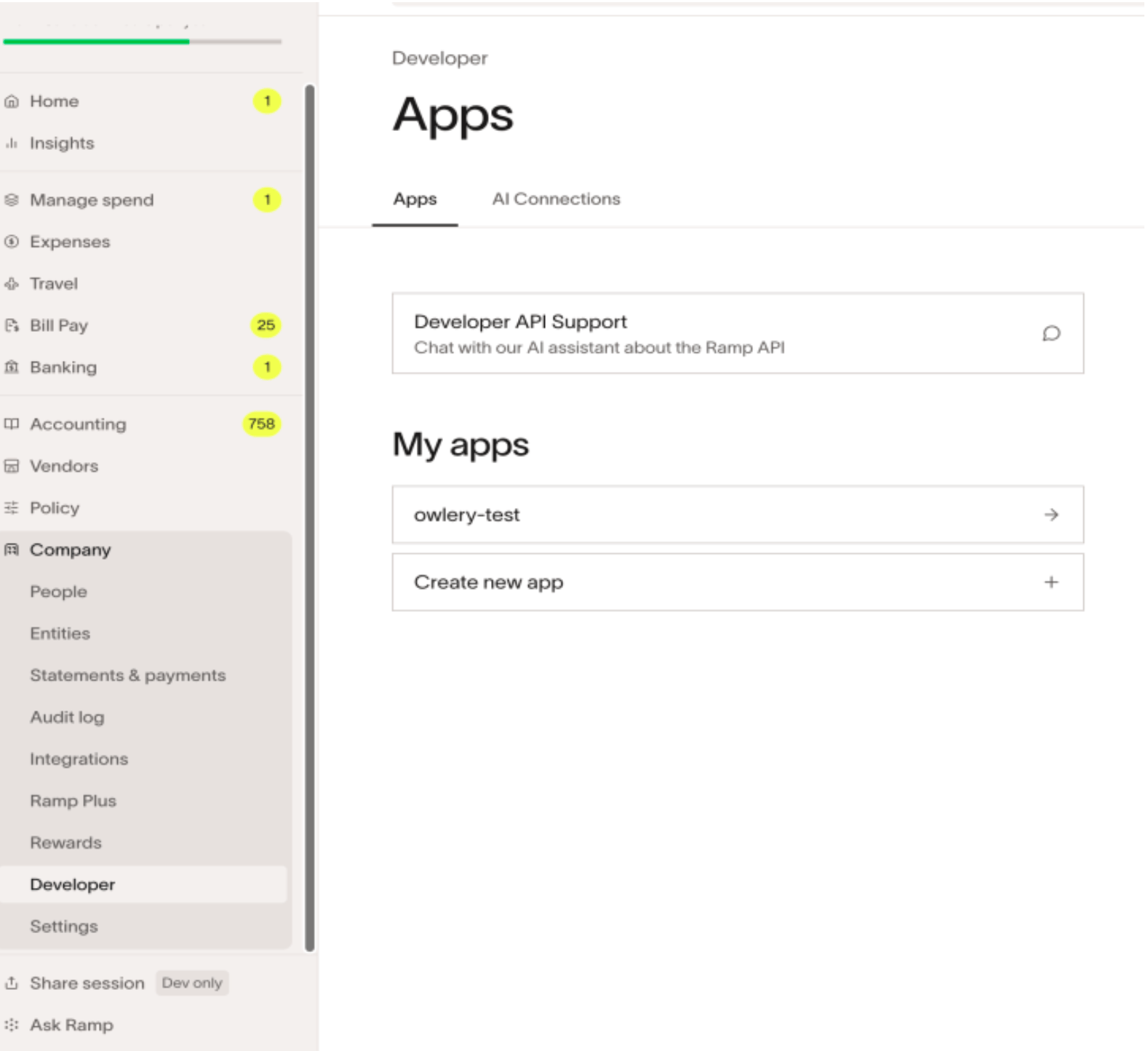
In Ramp, scroll down in the left-hand navigation to **Company** and select **Developer**. On the **Apps** tab, click **Create new app**.
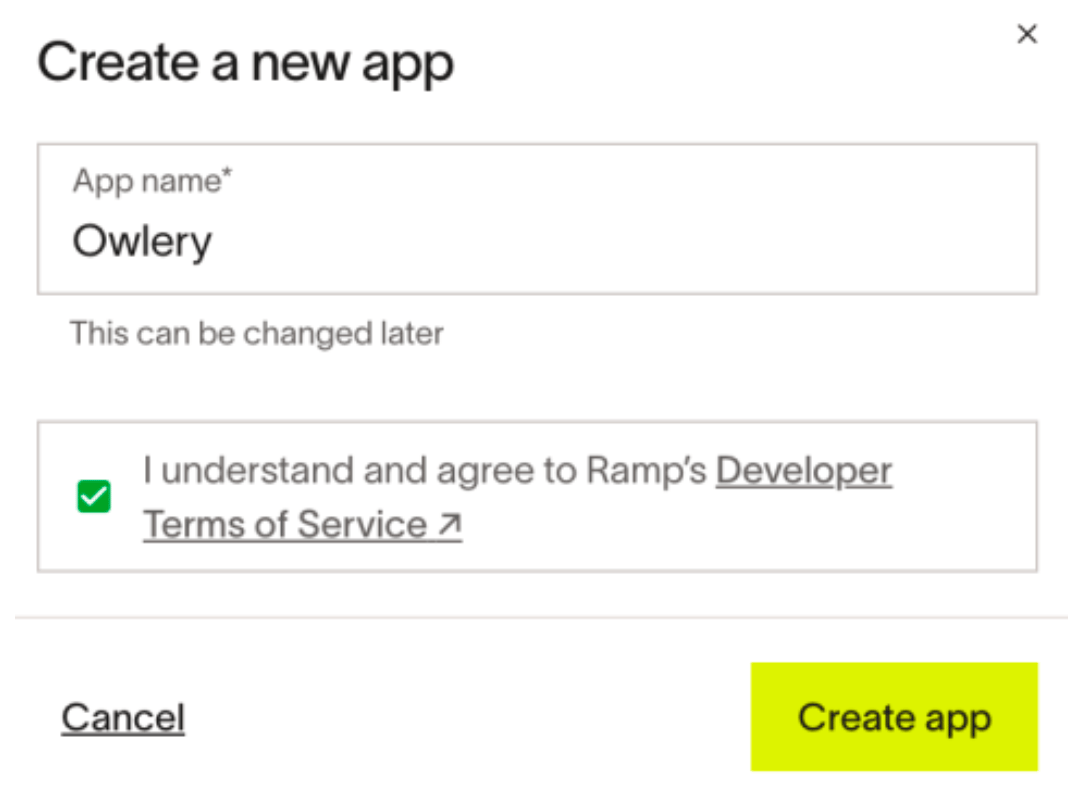
 Enter `Owlery` as the **App name**, accept Ramp's Developer Terms of Service, and click **Create app**.
 ## Part 2 — Configure the app
Once the app is created, you'll land on its settings page. Work through each section below.
### Redirect URI
Under **Redirect URIs**, click **+ Add new URI** and add this URL:
```text theme={null}
https://owlery.ai/api/auth/integrations/callback/ramp
```
This tells Ramp where to send you after you authorize the connection.
### Grant types
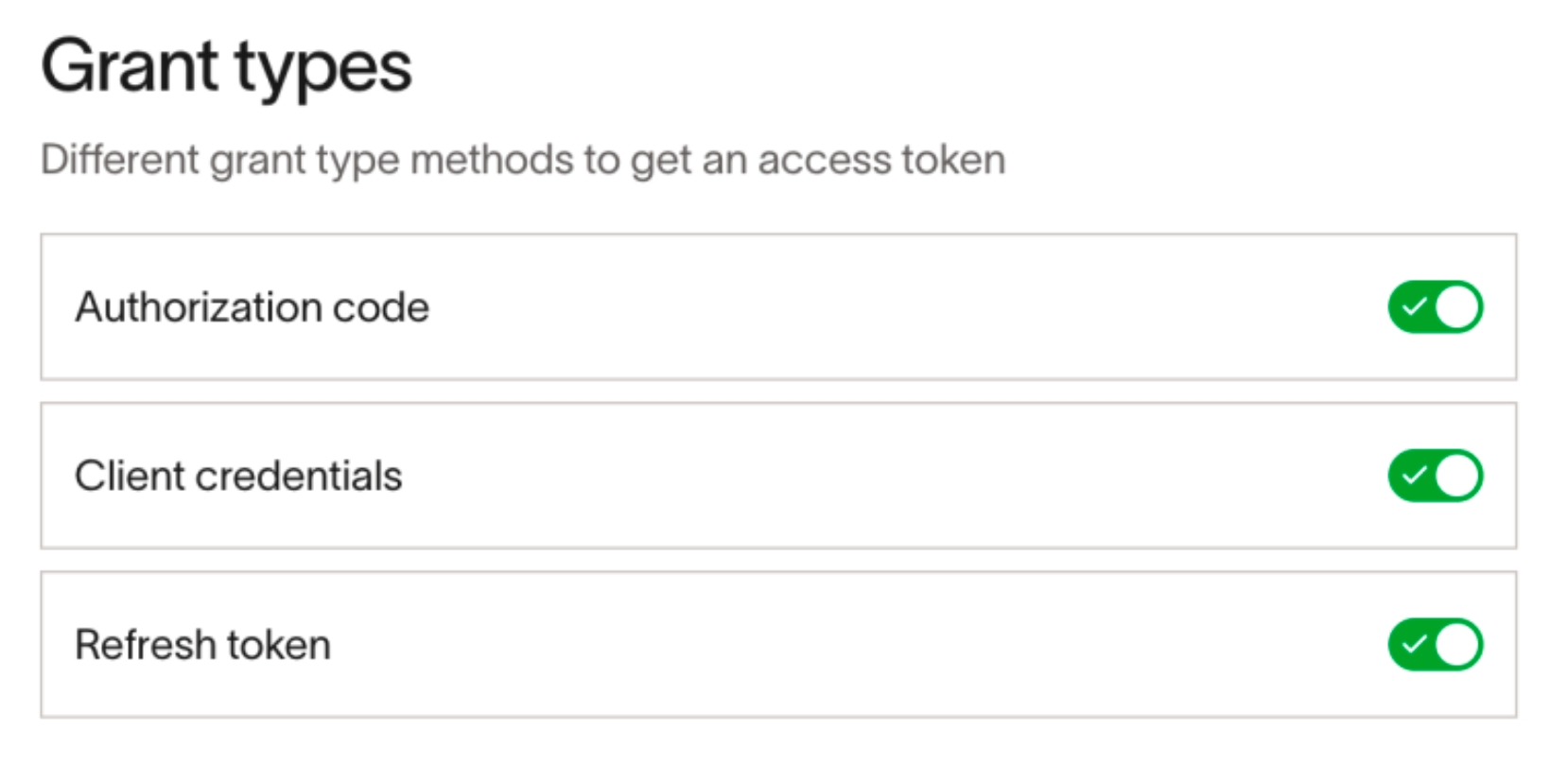
Under **Grant types**, enable all three toggles:
* **Authorization code**
* **Client credentials**
* **Refresh token**
All three need to be on for the connection to work.
## Part 2 — Configure the app
Once the app is created, you'll land on its settings page. Work through each section below.
### Redirect URI
Under **Redirect URIs**, click **+ Add new URI** and add this URL:
```text theme={null}
https://owlery.ai/api/auth/integrations/callback/ramp
```
This tells Ramp where to send you after you authorize the connection.
### Grant types
Under **Grant types**, enable all three toggles:
* **Authorization code**
* **Client credentials**
* **Refresh token**
All three need to be on for the connection to work.
 ### Scopes
Scroll to **Scopes** and click **Configure allowed scopes**. Add each of the following:
| Scope | What it does |
| ----------------- | ----------------------------------- |
| `bills:write` | Lets Owlery create and update bills |
| `bills:read` | Lets Owlery read bill data |
| `vendors:read` | Lets Owlery read vendor records |
| `entities:read` | Lets Owlery read entity data |
| `accounting:read` | Lets Owlery read accounting data |
### Save your credentials
After saving the app, Ramp displays a **Client ID** and **Client Secret**. Copy both — you'll need them in the next step.
The Client Secret is only shown once. If you lose it, you'll need to generate a new one in Ramp.
## Part 3 — Connect in Owlery
In Owlery, go to add an integration. In the search box, type `ramp` and select **Ramp**.
### Scopes
Scroll to **Scopes** and click **Configure allowed scopes**. Add each of the following:
| Scope | What it does |
| ----------------- | ----------------------------------- |
| `bills:write` | Lets Owlery create and update bills |
| `bills:read` | Lets Owlery read bill data |
| `vendors:read` | Lets Owlery read vendor records |
| `entities:read` | Lets Owlery read entity data |
| `accounting:read` | Lets Owlery read accounting data |
### Save your credentials
After saving the app, Ramp displays a **Client ID** and **Client Secret**. Copy both — you'll need them in the next step.
The Client Secret is only shown once. If you lose it, you'll need to generate a new one in Ramp.
## Part 3 — Connect in Owlery
In Owlery, go to add an integration. In the search box, type `ramp` and select **Ramp**.
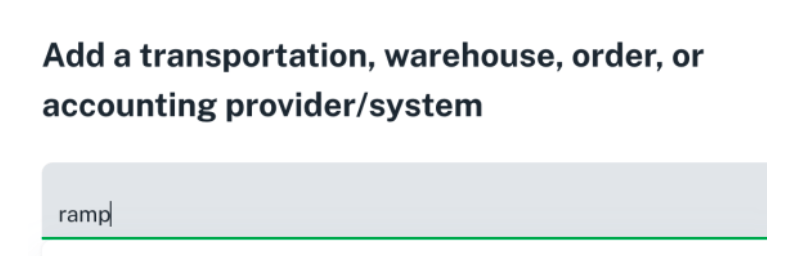 {/* 📸 SCREENSHOT: The "Add a provider" dialog in Owlery with "ramp" typed into the search box and Ramp highlighted in the results. */}
Paste the values from Ramp:
* **Client ID** — from your Ramp app
* **Client Secret** — from your Ramp app
* **API URL** — enter `https://api.ramp.com`
Click **Continue**. You'll be redirected to Ramp to approve Owlery's access. Once you approve, Ramp sends you back to Owlery and the connection is live.
## Troubleshooting
The Developer section is only visible to Ramp admins. Ask your Ramp admin to either create the app for you or grant you admin access.
Double-check that the redirect URI in your Ramp app matches exactly: `https://owlery.ai/api/auth/integrations/callback/ramp`. Extra spaces or a missing trailing path segment will break the redirect.
Make sure all five scopes are enabled on your Ramp app. If you added scopes after the initial authorization, you may need to disconnect and reconnect in Owlery to pick up the new permissions.
{/* 📸 SCREENSHOT: The "Add a provider" dialog in Owlery with "ramp" typed into the search box and Ramp highlighted in the results. */}
Paste the values from Ramp:
* **Client ID** — from your Ramp app
* **Client Secret** — from your Ramp app
* **API URL** — enter `https://api.ramp.com`
Click **Continue**. You'll be redirected to Ramp to approve Owlery's access. Once you approve, Ramp sends you back to Owlery and the connection is live.
## Troubleshooting
The Developer section is only visible to Ramp admins. Ask your Ramp admin to either create the app for you or grant you admin access.
Double-check that the redirect URI in your Ramp app matches exactly: `https://owlery.ai/api/auth/integrations/callback/ramp`. Extra spaces or a missing trailing path segment will break the redirect.
Make sure all five scopes are enabled on your Ramp app. If you added scopes after the initial authorization, you may need to disconnect and reconnect in Owlery to pick up the new permissions.