

You must use your work email. Personal email accounts (Gmail, Outlook.com, etc.) won’t work.
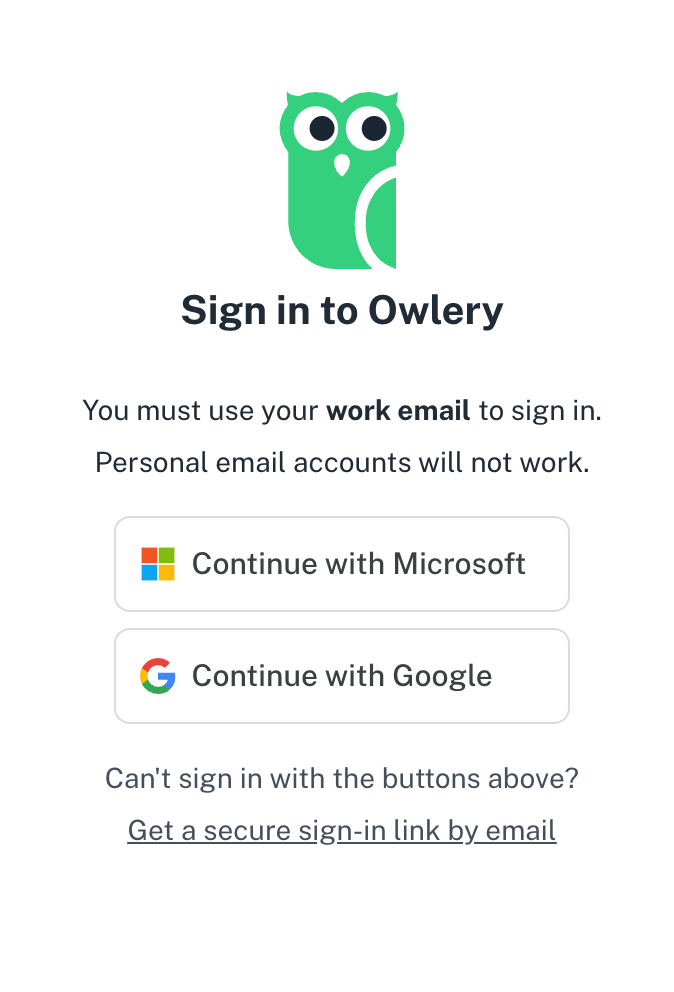
Sign in with Google or Microsoft
1
Go to Owlery
Open Owlery in your browser. You’ll land on the sign-in screen.
2
Pick your provider
Click Continue with Microsoft or Continue with Google — whichever one your company uses for work email.
3
Authorize with your provider
Sign in with your work email credentials through your provider’s standard login screen. If you’re already signed in to Google or Microsoft in your browser, this may happen automatically.
If your IT team manages access
If your organization controls which third-party apps employees can use, your IT team has to approve Owlery before anyone can sign in. You’ll know that’s what’s happening if you see a screen like this after picking Google or Microsoft: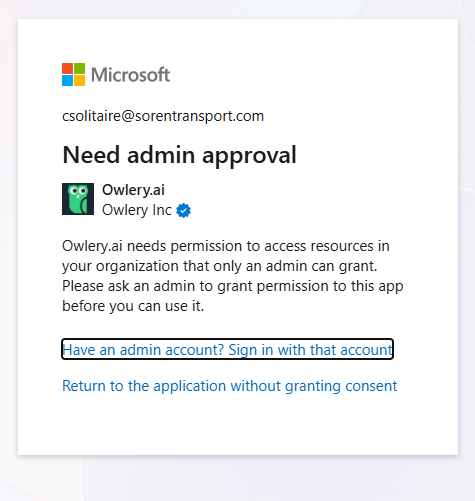
I need access to Owlery (owlery.ai). Sign-in is blocked because the app needs admin consent. Could you approve Owlery as a permitted application and grant access to me or our team group? More info can be found here: https://help.owlery.ai/signing-inWhat your IT team will need to do:
- Mark Owlery as an approved application in your identity provider (Google Workspace, Microsoft Entra ID, etc.)
- Allow the appropriate users or groups to access Owlery
- Optionally, manage ongoing access through groups
Use a magic link instead
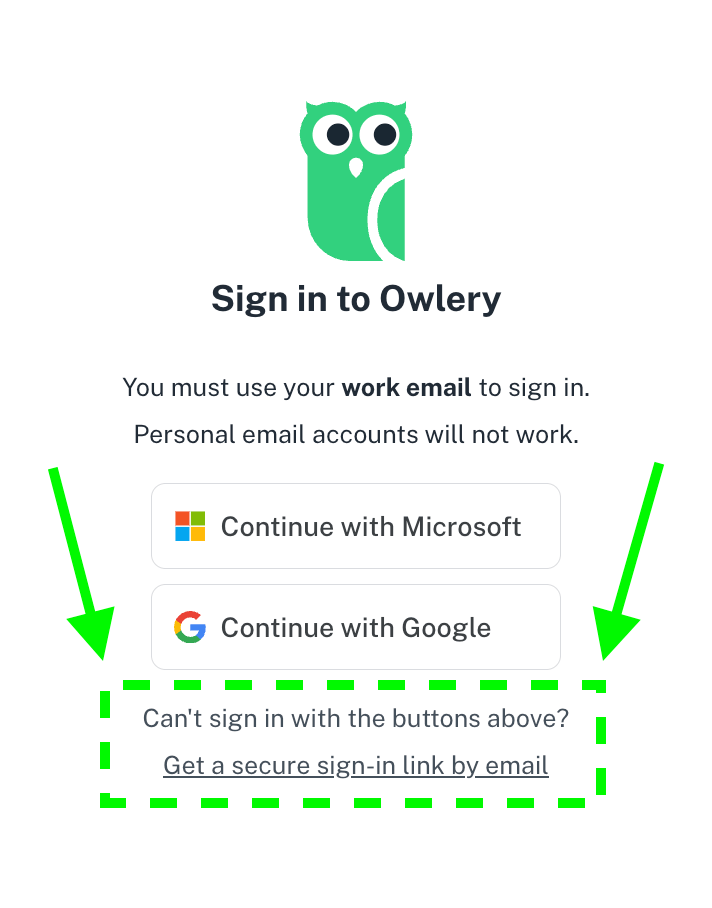
If your don’t use Google or Microsoft for signing in, you can sign in with a secure email link (referred to as a “magic link”).1
Click the magic link option
On the sign-in screen, click Get a secure sign-in link by email.
2
Enter your work email
Type your work email address and submit.
3
Check your inbox
Open the sign-in email from Owlery and click the link. It’ll sign you straight in.
What Owlery stores about you
When you sign in, Owlery only stores only things from your profile: your name, your email address, and an internal system ID that ties it all together. That’s it – no passwords or secure information.Troubleshooting
My IT team has security questions about Owlery before I can sign in
My IT team has security questions about Owlery before I can sign in
Owlery runs on enterprise-grade infrastructure with encryption at rest and in transit. We do not store user information beyond what is required for basic account creation (see What Owlery Stores about you above).For a live list of our security & compliance controls, subprocessors, and common FAQs, your IT team can visit our Trust & Security Center.
I see 'Need admin approval' or my sign-in is blocked
I see 'Need admin approval' or my sign-in is blocked
Your IT team may need to whitelist Owlery in your organization’s Google or Microsoft admin settings. See If your IT team manages access above. Check with them first — if that doesn’t fix it, email support@owlery.ai with your company name and the error you’re seeing.
I signed in but don't see my data
I signed in but don't see my data
Owlery matches you to your organization by your email domain. If you’re signed in with your correct work email and still don’t see what you expect, check with a teammate - they probably just need to add you to the right team. See Invite Team Members for how they do that, and what to do if your email is on a different domain than the rest of the organization.
My download shows 'Download Blocked' or 'Unable to process file'
My download shows 'Download Blocked' or 'Unable to process file'
This almost always means your company’s email security tool (Proofpoint, Mimecast, Barracuda, etc.) is intercepting the download and blocking it.The quickest fix: copy the sign-in link from your email and paste it into your browser instead of clicking it, then try the download again.The permanent fix: ask your IT team to allowlist
owlery.ai in your email security tool. This can take a while, so use the copy-paste option in the meantime.Why this happens: Owlery generates your files directly in your browser and hands them to you through a private, one-time link that only exists inside your current browser tab. Nothing is ever posted to a public URL, which keeps your data and reports from being shared, cached, or scraped. When a security tool tries to re-open that link from its own scanner, the file isn’t there — so the download fails.