

Send the Tender
1
Start the Tender
Open the quote that shows Carrier Selected and click Proceed to Tender. Nothing is sent until you confirm.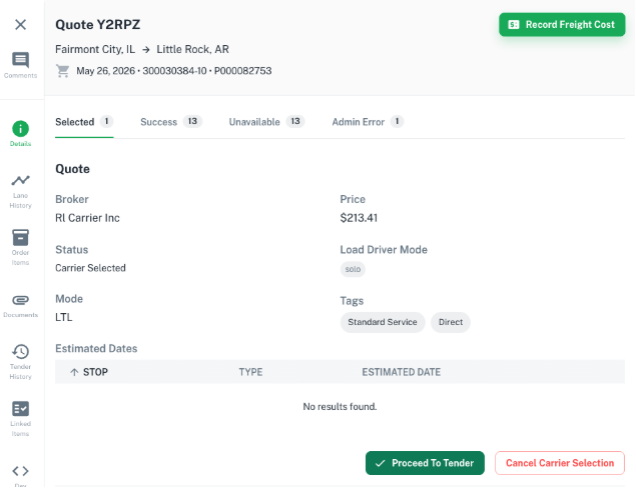
2
Review Changes to Your Order
Owlery checks whether your order changed since you selected the carrier. You then pick one of two options: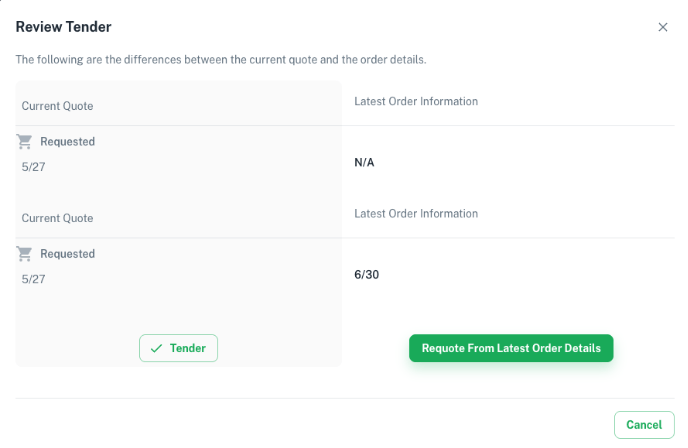
- Tender the original quote: send the quote exactly as it was.
- Requote from the latest order details: rebuild the shipment from your current order, such as updated dates or reference numbers.
3
Make Any Final Adjustments
You can still change the shipment before it goes out:
- Update the quantity
- Add reference numbers
- Change stop dates
- Add instructions or contact details for this shipment
4
Confirm and Tender
When you confirm, Owlery sends the tender. What happens next depends on the rate type:
- Full truckload (FTL) rates from contracts or the carrier portal: the tender uses the rate the carrier already gave you.
- Less-than-truckload (LTL) rates quoted through the carrier’s API: the tender goes through automatically. If the rate changed, Owlery asks you to accept the new rate first.
5
Finish the Tender Steps
The normal tender steps follow, including any document checks from your Tender Release Settings.