

Quotes → open any quote
When you tender a quote in Owlery, you can automatically generate and send your shipment documents — all in one step. This page covers where to find the settings, what each option does, and how to review everything before you confirm.
Which documents are available here depends on what’s turned on in Document Settings: the three standard documents, plus any custom templates on your account.
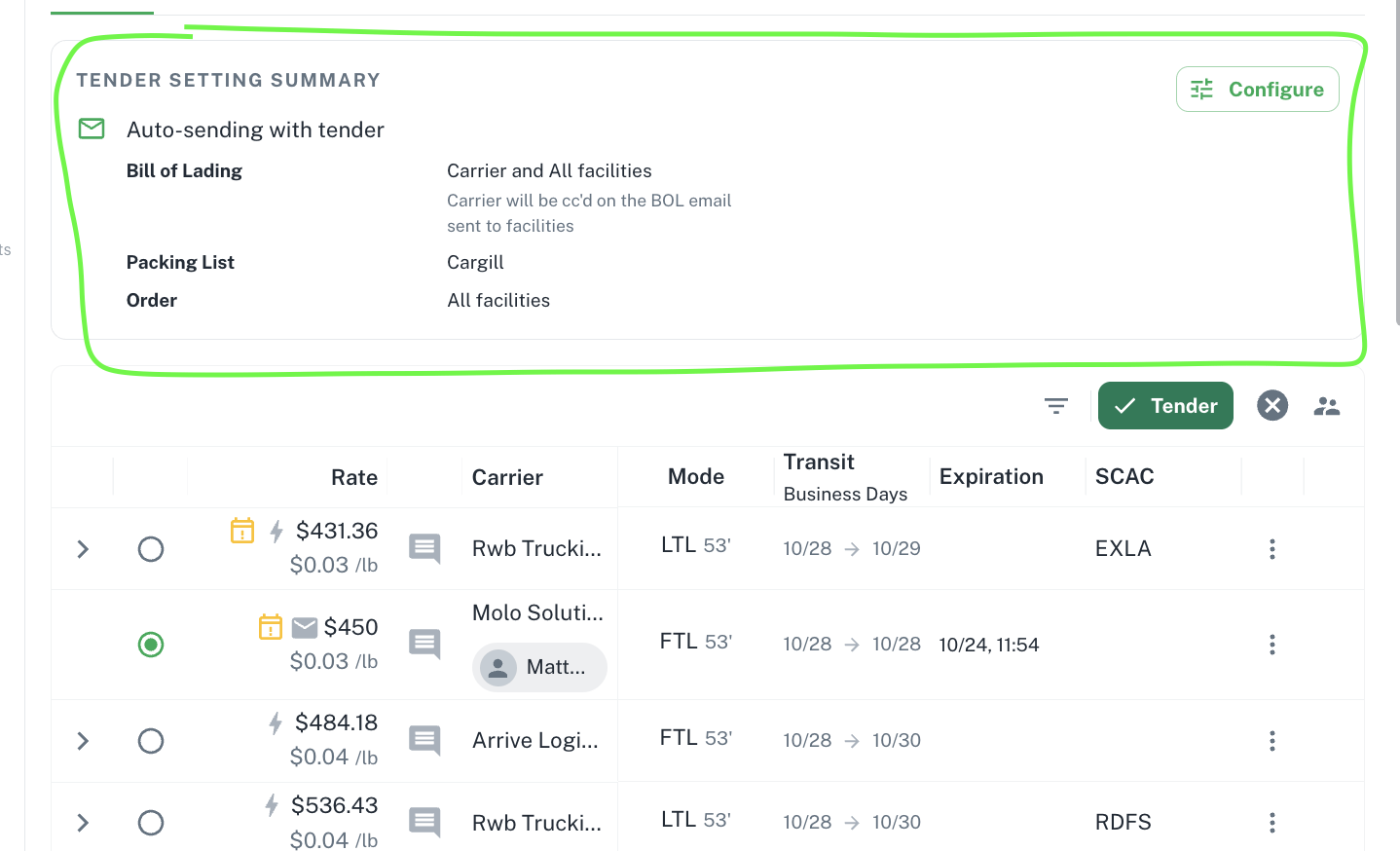
Where the Settings Live
Every quote starts from your Tender Defaults. If you change the settings on a quote, Owlery saves them for that lane. Later quotes on the same lane use your lane settings; other lanes keep using Tender Defaults.
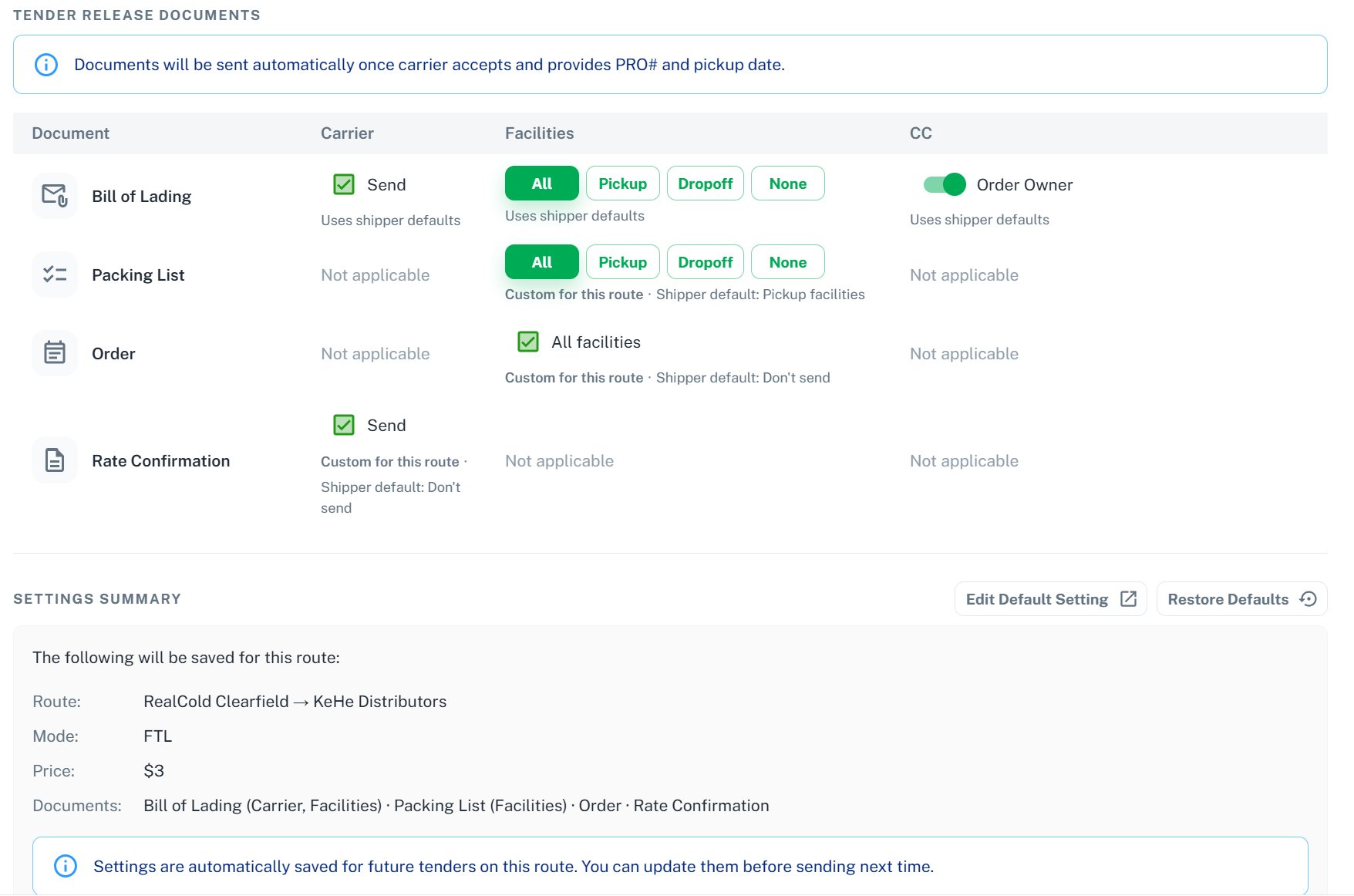
What Each Setting Does
Click Configure on the Tender Release Settings card to open the settings table.Bill of Lading (BOL)
Generates and emails a Bill of Lading at tender time.- Carrier: toggle on to email the BOL to the carrier assigned to the load.
- Facilities: check the stops that should receive the BOL. If every stop is checked, the row switches to All facilities.
- CC: toggle on to CC the order owner on the BOL email.
Packing List
Generates and emails a packing list at tender time. Sent to facilities only.- Facilities: the packing list is sent to the first pickup facility on the quote.
Shipping Label
Generates and emails a shipping label at tender time. Sent to facilities only.- Facilities: the shipping label is sent to the first pickup facility on the quote.
Custom Document Templates
Any custom template you’ve turned on in Document Settings gets its own row here, alongside the standard documents.- Carrier: toggle on to email the document to the carrier.
- Facilities: check the stops that should receive it.
Send Order to Facility
When toggled on, Owlery sends the related purchase order(s) to the pickup and dropoff facilities via their connected integrations. Orders are matched by reference number. To check that an order went out, see Sending Orders to Your Warehouse.Rate Confirmation Email
When toggled on, the carrier or broker receives a rate confirmation email at tender. This is the standard tender notification — leave this on unless you send rate confirmations outside Owlery.Reviewing Before You Tender
You get three checkpoints so nothing goes out unless you’ve seen it.1. The Summary Card
The Tender Release Settings card on the quote shows exactly what will happen at a glance:- Which documents will be sent
- To whom: carrier, facilities, or both
- Warnings if any selected facility is missing email contacts
2. The Configure Dialog
Click Configure to open the full settings table. A live Summary panel at the bottom updates as you toggle options, so you always know exactly what will be sent. Click Save to apply your changes to this lane.3. The Confirmation Steps
When you click the tender button, Owlery walks you through a step-by-step confirmation flow for every document you’ve configured. You preview each document before it’s sent:- Check BOL: review the generated BOL and make any last adjustments.
- Check Packing List: review the packing list before it’s emailed.
- Check Shipping Label: review the shipping label before it’s emailed.
- Quote Write Back: review and confirm any price write-back to your ERP.
FAQ
Will my changes apply to other quotes?
Will my changes apply to other quotes?
Only to quotes on the same lane. Changes you make on a quote are saved for that lane. Every other lane uses your Tender Defaults.
What happens if a facility has no email contacts?
What happens if a facility has no email contacts?
The summary card and confirmation steps show a warning. The document is still generated, but that facility won’t receive the email. Add facility contacts under Facilities → Contacts to resolve this.
What if a document email fails to send?
What if a document email fails to send?
The tender itself is not affected. The failure is logged and the Owlery team is alerted automatically.
Why don't I see a document I expected?
Why don't I see a document I expected?
Only documents turned on in Document Settings appear here, and custom templates additionally need to apply to the shipment. Custom templates are built by Owlery on request — contact support@owlery.ai to get one set up.