

Operations → Quotes & Tenders → Accessorial Requests, or Quotes & Tenders → accepted quote → Details
An accessorial request is an extra charge a broker asks a shipper to pay after a tender is accepted, such as detention or a lumper fee. The broker submits the charge and supporting documents. The shipper reviews it before an approved amount changes the awarded price.
Your shipper organization controls whether accessorial requests are enabled. Once enabled, your team can review requests and the awarded broker can submit them for accounts they can access.
Enable Accessorial Requests
OpenShipper Settings → Tendering and turn on Accessorial Requests. The toggle saves immediately. You do not need an Owlery admin to change it.
When enabled, Quotes & Tenders expands into two sidebar links: Quotes & Tenders first, then Accessorial Requests. When disabled, it returns to a single quotes link and new broker requests and decisions are blocked.
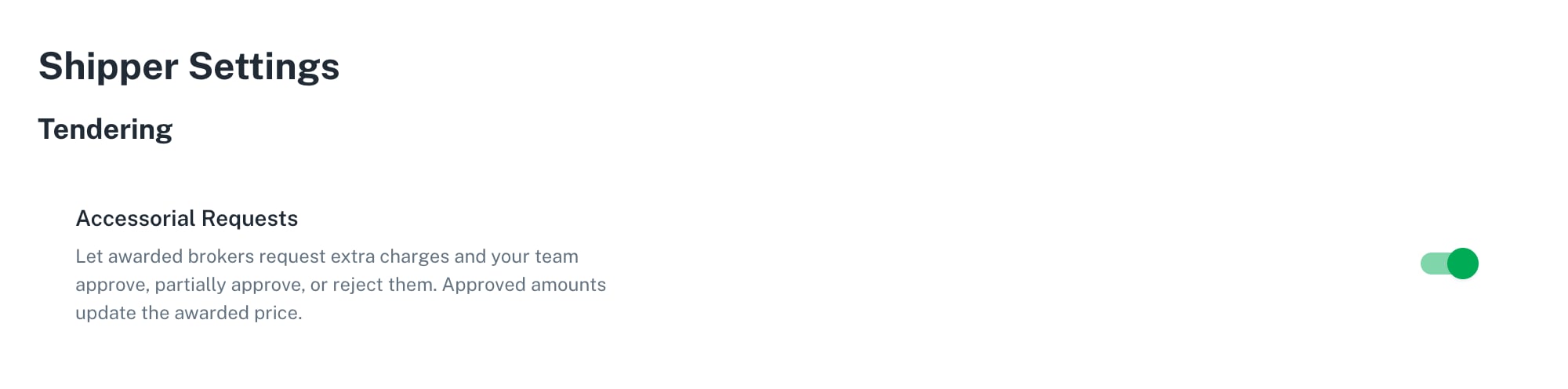
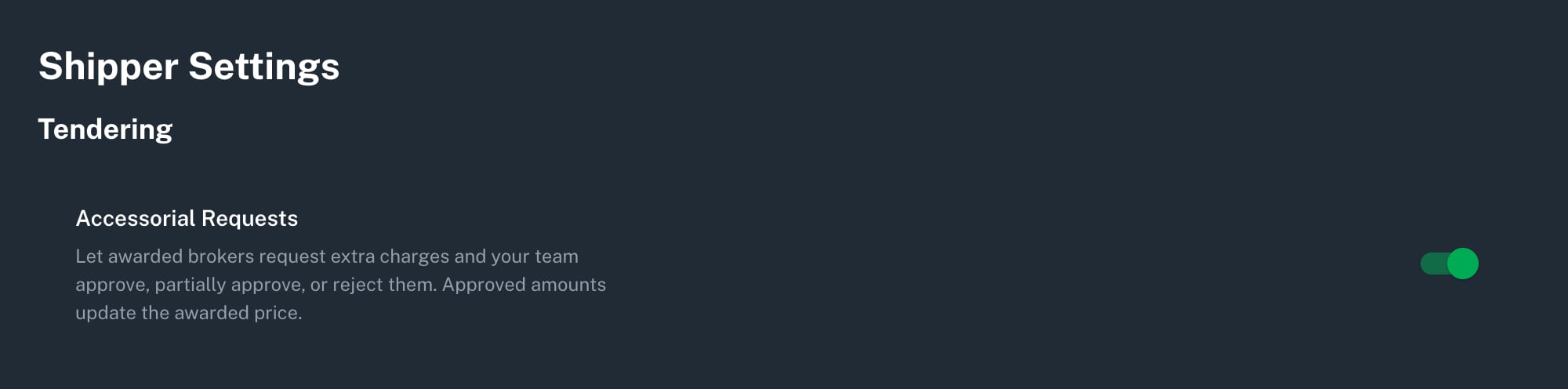
Shipper-owned enablement setting, rendered from the application with sample data.
For Brokers: Submit a Request
1
Open the Accepted Quote
Open a quote awarded to your brokerage with an Accepted status. Your account must have access to that shipper. Beside Price, click the + button labeled Request Accessorial Charge.
2
Explain the Charge
Complete the form:
- Price: the extra amount you are requesting, not the new total quote price. Enter an amount above zero with no more than two decimal places. The quote’s currency applies automatically.
- Category: select the type of charge. Brokers cannot request a discount through this form.
- Reason: explain why the charge applies, using up to 1,000 characters.
- Code: optionally enter a charge reference code.
3
Attach Supporting Documents
Optionally add up to five files under Documents, such as detention logs or signed delivery receipts. These files also appear in the quote’s documents.
4
Send the Request
Click Submit Request. The request appears as Pending in the quote’s Accessorial Requests section. The awarded price stays unchanged until the shipper approves an amount.
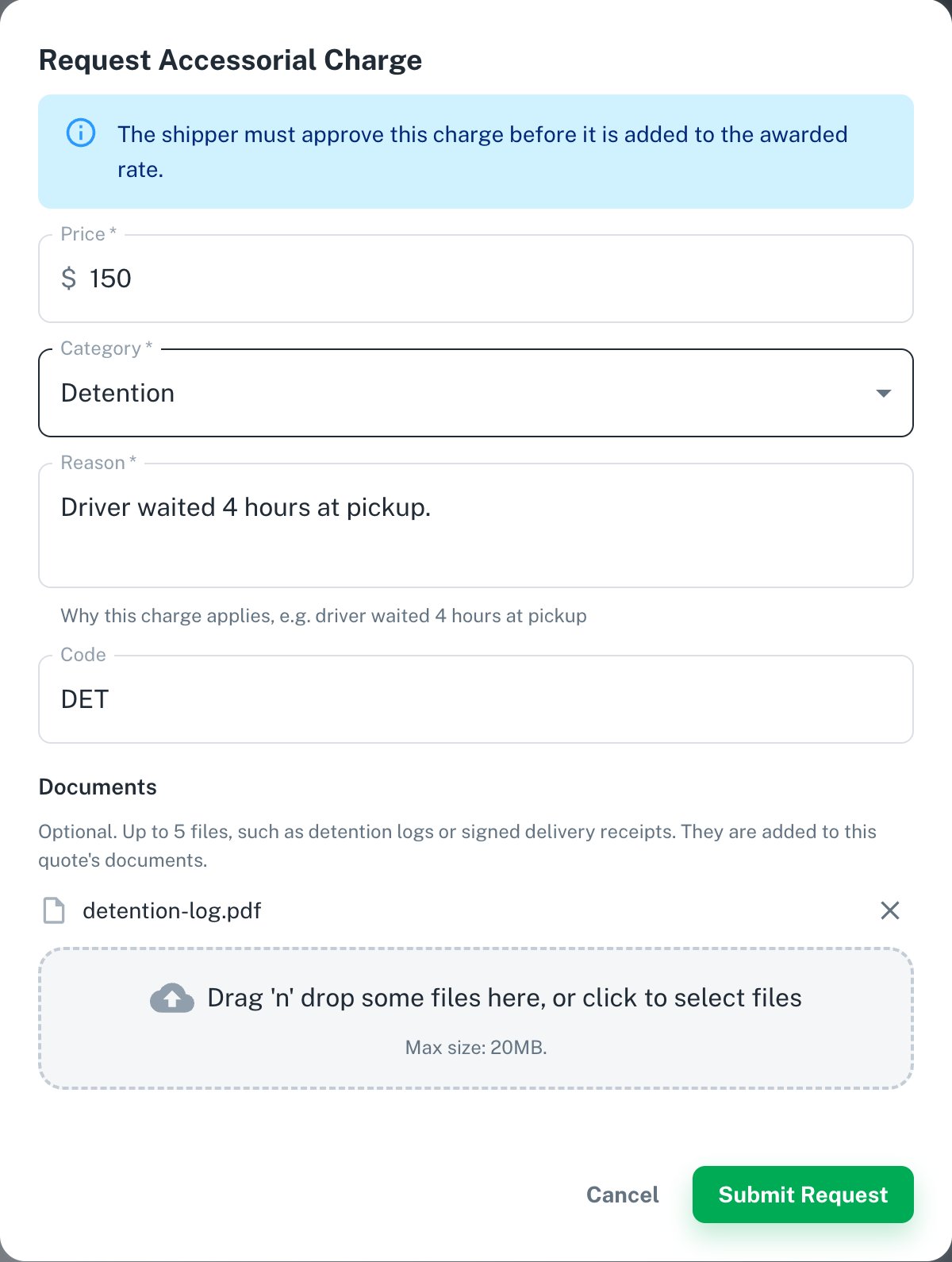
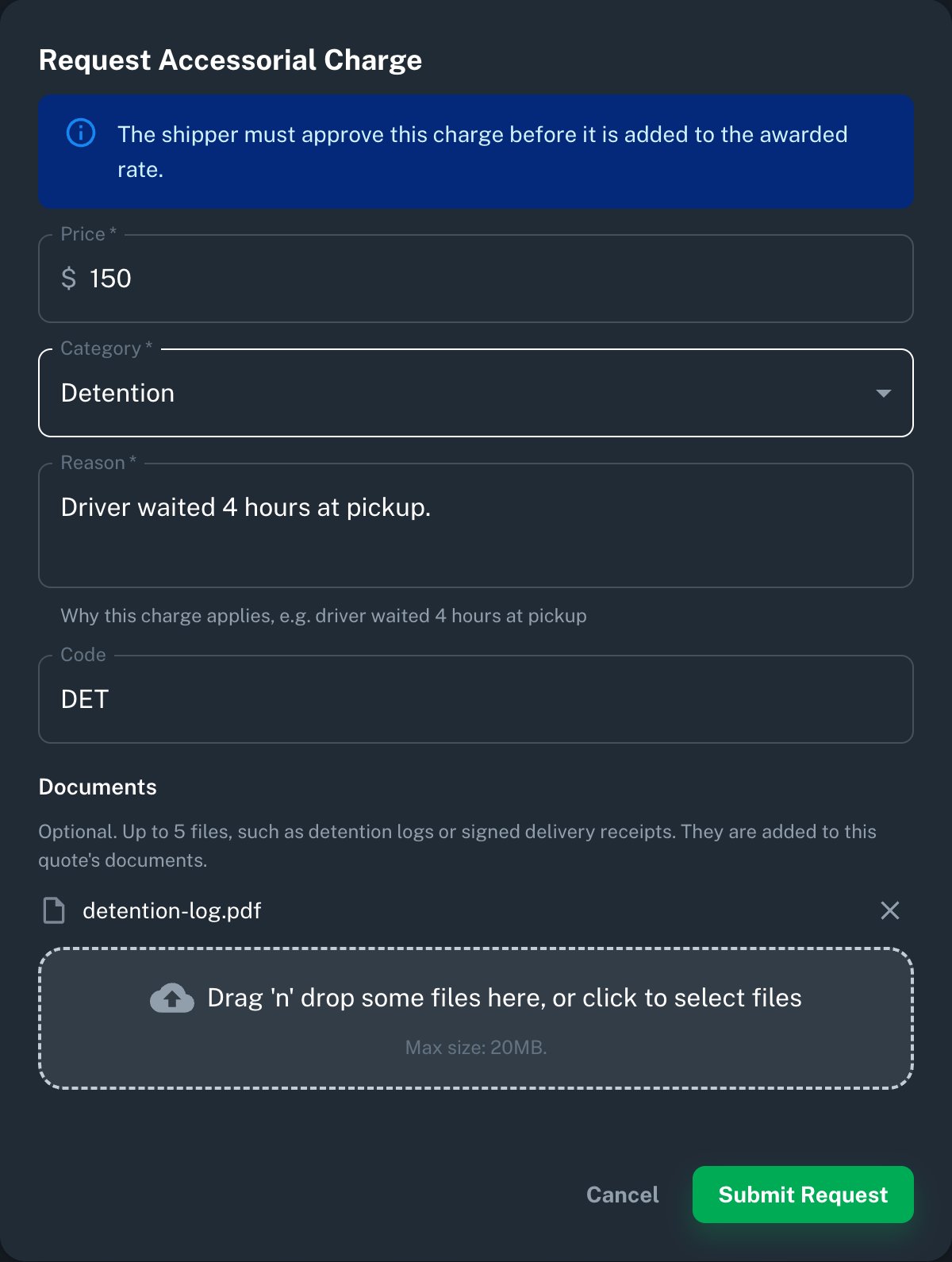
Application components rendered with sample data.
For Shippers: Find a Request
The Accessorial Requests page starts with a Pending filter. Clear or change the Status filter to see earlier decisions and expired requests. The table shows the quote, broker, charge category, requested and approved amounts, status, submitter, submission date, and pending request’s expiry date. It shows up to the 500 most recent requests. Click a row to see its Reason, Documents, and History. Click Open Quote to view the shipment details. You can also review requests in the Accessorial Requests section of an accepted quote’s Details tab.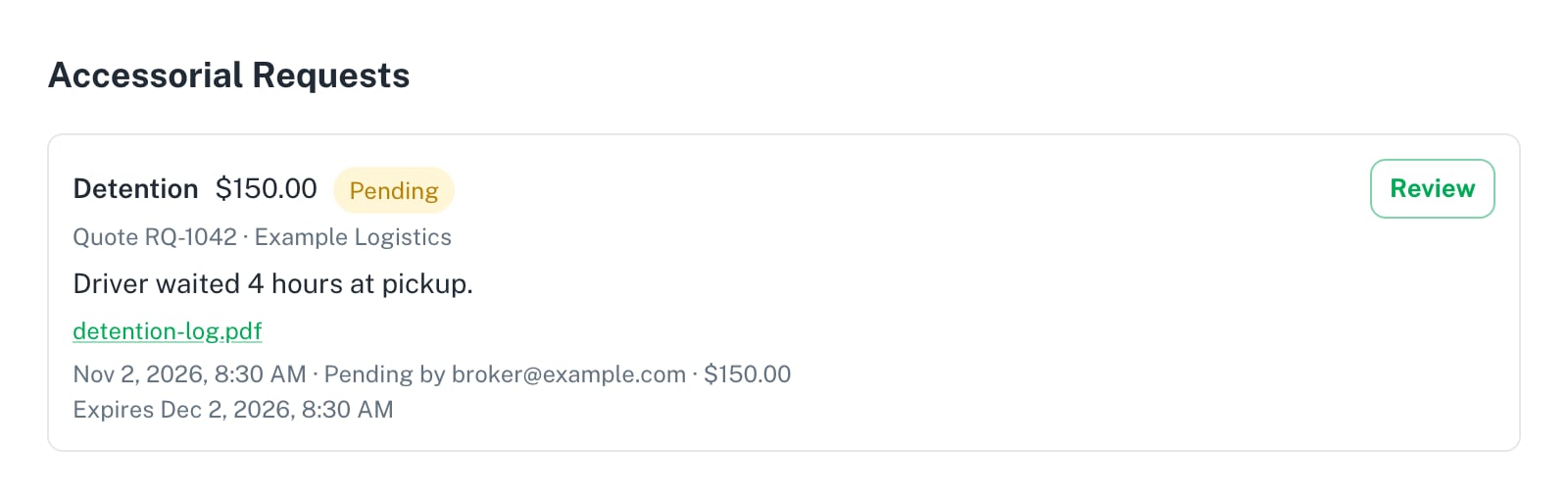
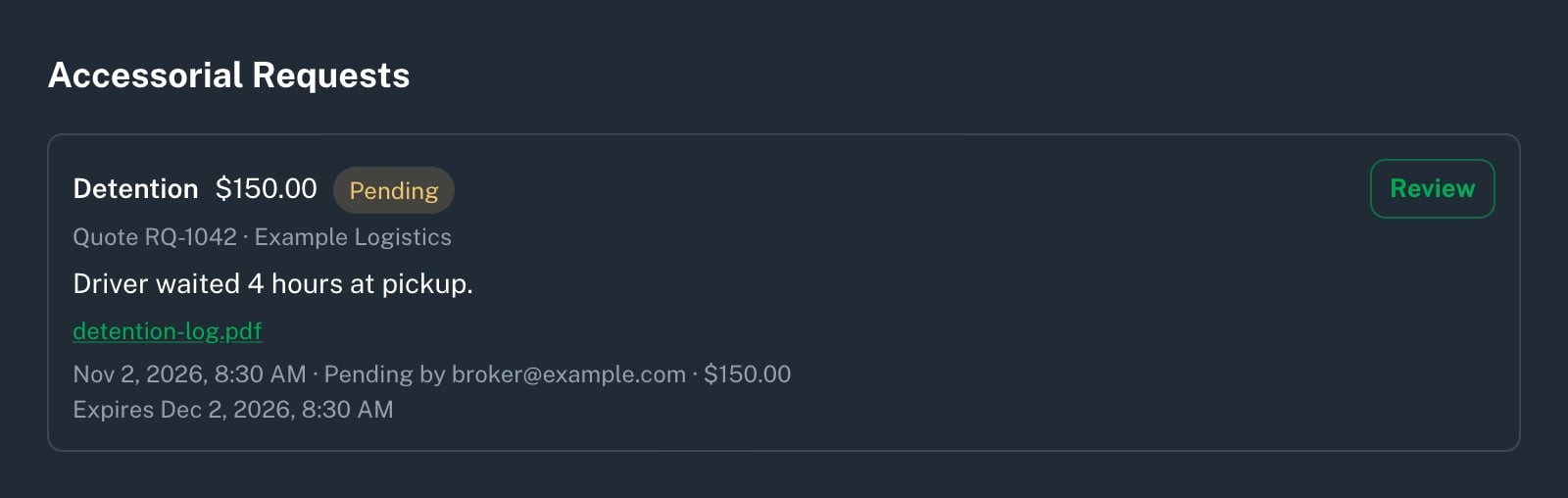
Application components rendered with sample data.
For Shippers: Review an Extra Charge
1
Check the Request
Open the request and compare the requested amount with the reason and supporting documents. The charge uses the awarded quote’s currency.
2
Choose a Decision
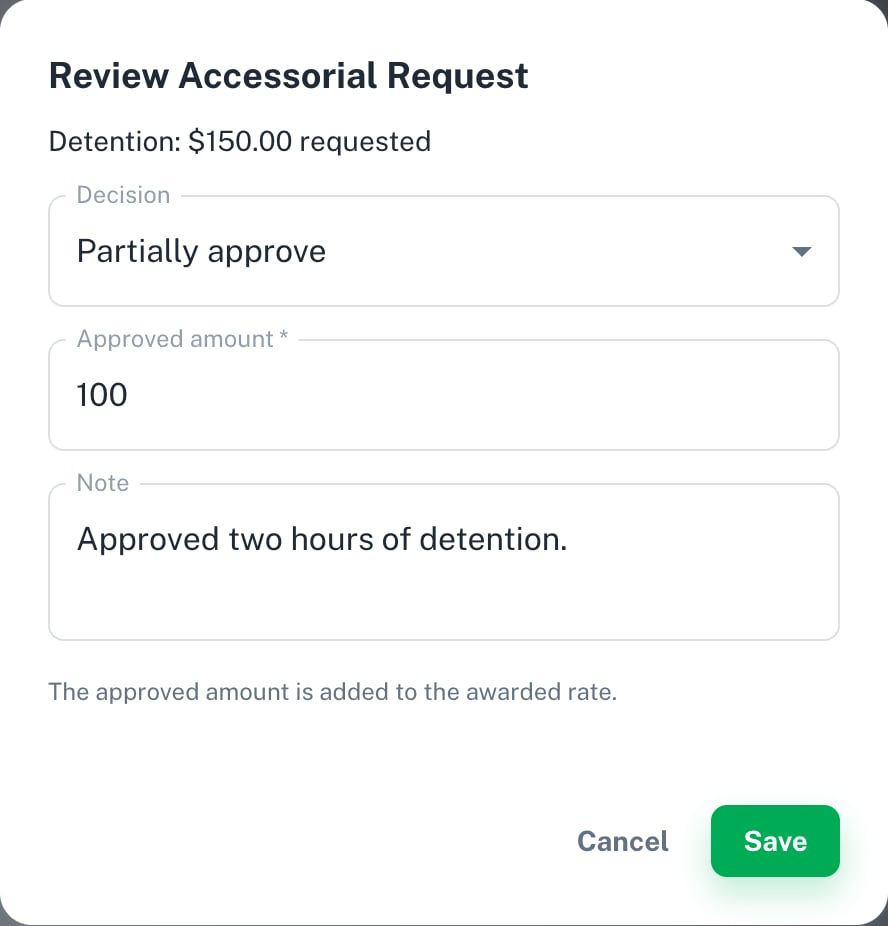
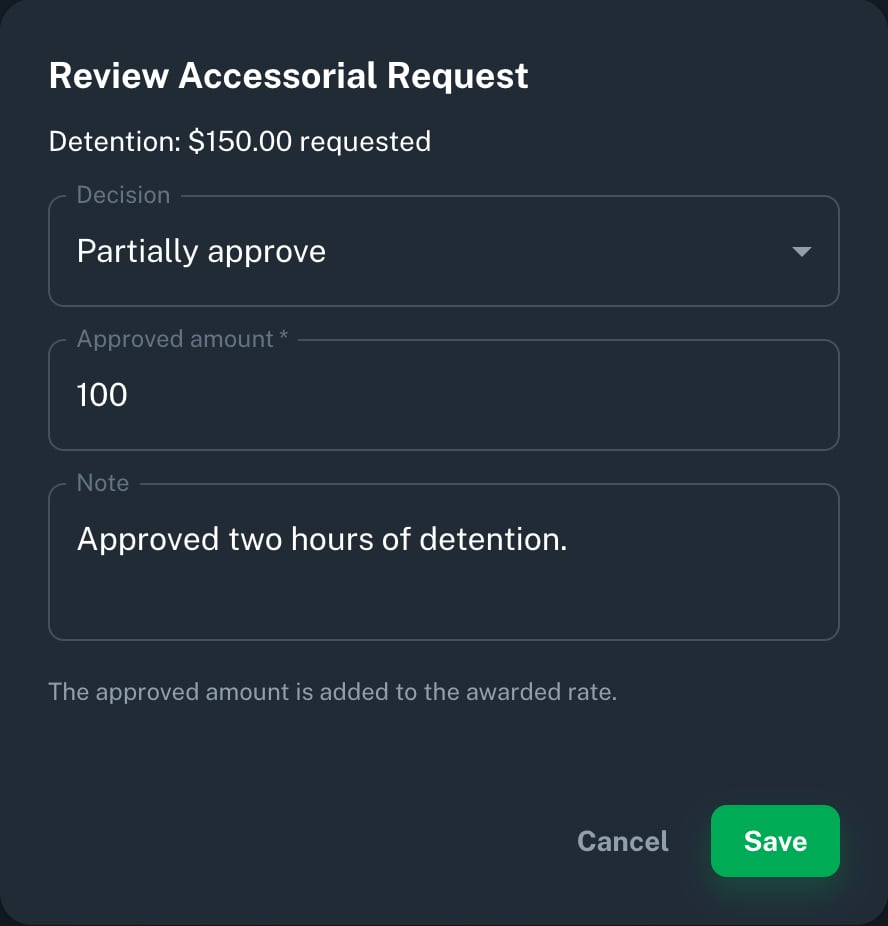
Click Review. In Decision, choose:
- Approve: add the full requested amount to the awarded price.
- Partially approve: add only the Approved amount you enter. It must be above zero and below the requested amount, with no more than two decimal places.
- Reject: leave the awarded price unchanged.
3
Save the Decision
Click Save. The request records the status, decision maker, time, amount, and note in its history. The broker can view the result on the quote.
Application components rendered with sample data.
Track the Result
Return to the quote’s Accessorial Requests section to see the status, approved amount, supporting documents, and decision history. Brokers can view the result; the shipper makes the decision.What Changes After Review
Approval adds a price item and a new entry in the quote’s price history. Owlery also updates the associated load’s price. For example, approving $100 of a $150 request on a $1,000 quote makes the awarded price $1,100. Pending, rejected, and expired requests leave the price unchanged. A partial approval completes the request; the remaining amount does not stay pending.This decision updates the awarded quote price. It does not approve an invoice or revise an existing invoice. Handle invoice changes through your invoice workflow.