

Your customer has to add your company’s email domain as a supplier first. If they’re setting this up, send them to Suppliers.
Create an Order
1
Sign In and Start a New Order
Sign in to Owlery with your work email. Click + New Order.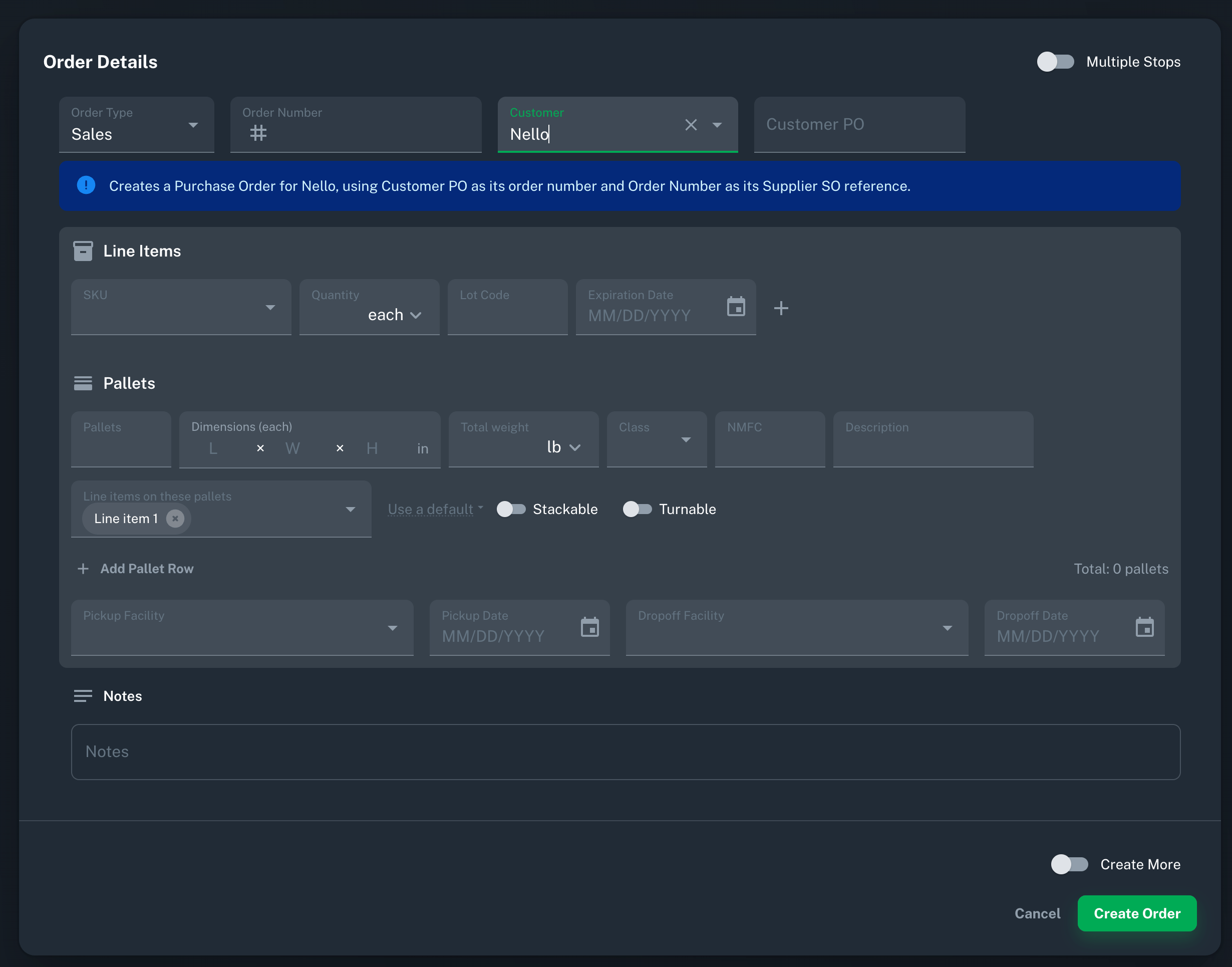
2
Choose the Order Type and Customer
Set Order Type to Sales. You’re selling, so this is your sales order. Your customer receives it as their purchase order.In Customer, pick the company you’re shipping to. Only customers who have added you as a supplier appear here.
3
Enter the Order Numbers
- Order Number: your sales order number.
- Customer PO: your customer’s PO number. It’s required. Owlery uses it to number the order in your customer’s account.
4
Add Line Items
Pick SKUs from your customer’s catalog. If a SKU is missing, you can add it from the SKU picker.Enter quantities in the units you sell in, like cases or eaches. Don’t enter pallets here.
5
Add Pallets
Add one or more pallet rows. For each row, enter the number of pallets, dimensions, total weight, freight class, and which line items are on those pallets.Every line item has to be on at least one pallet row.
6
Choose Facilities and Dates
Choose the pickup and dropoff facilities and dates. You can pick from your active facilities and your customer’s.If a facility is missing, you can add it. A facility you add belongs to your company, not your customer. A SKU you add is different: it goes into your customer’s catalog.
7
Click Create Order
The order goes to your customer’s account.