

Reminder: if you are an Enterprise customer with individual subsidiary organizations, these must be configured at the subsidiary organization level like all other shipper settings.
Dashboard → Shipper Settings → Freight Audit & Pay → Payment Due Date Rules
Payment Due Date Rules require Bill Pay to be activated for your organization. If you don’t see the Freight Audit & Pay card, reach out to support@owlery.ai to get it turned on.
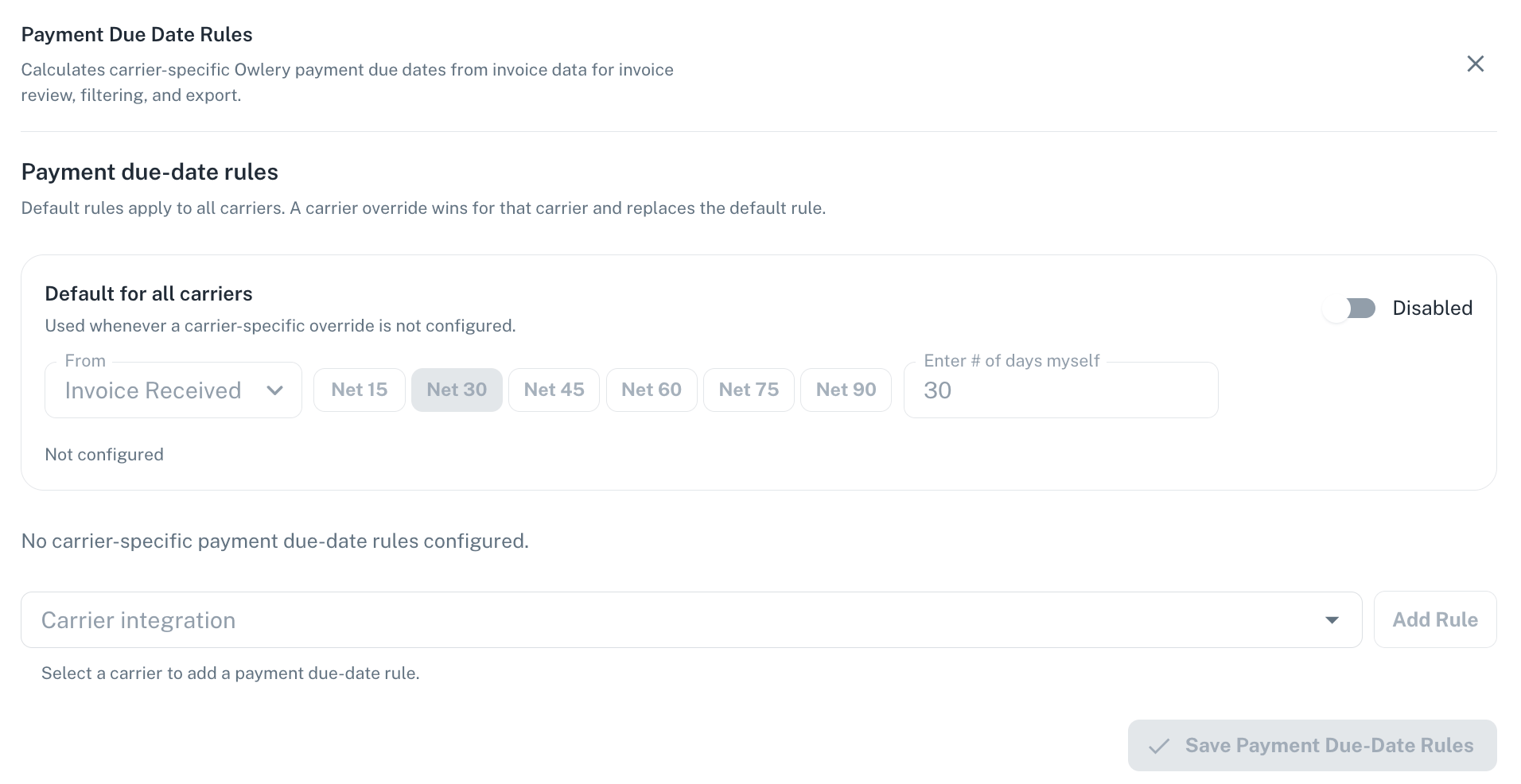
How rules work
Each rule has two parts:- “From” (base date): the starting point for the calculation. Either Invoice Date (the date the carrier put on their invoice) or Invoice Received (the date Owlery first recorded the invoice).
- Payment Terms: the number of calendar days added to the base date. Use one of the preset shortcuts (Net 15, 30, 45, 60, 75, or 90) or type in any number.
Default rule vs. carrier overrides
You can set up a default rule that applies to all carriers, then add carrier overrides for carriers with different payment terms. Here’s how Owlery decides which rule to use:- Carrier has an override? → Uses the override.
- No override, but a default rule exists? → Uses the default.
- No override and no default? → No due date — the column stays blank for that carrier’s invoices.
Setting up your rules
1
Open the rule editor
Go to Dashboard → Shipper Settings, click the Freight Audit & Pay card, then click Payment Due Date Rules.
2
Set a default rule
Pick a the “From” base date (Invoice Date or Invoice Received), then set the terms — click a preset like Net 30 or type a custom number.
3
Add carrier overrides (optional)
If certain carriers have different terms, add an override for each one. Select the carrier, choose the base date, and set the offset.
4
Save
Click Save. Owlery recalculates payment due dates on all existing invoices for your organization — you don’t need to go back and update anything manually.
What happens when the two dates differ
The carrier’s invoice has its own due date, and Owlery calculates a separate one based on your rules. If they don’t match, the invoice detail drawer shows a heads-up: “Vendor due date differs from your payment due date.” Neither date overwrites the other — both stay visible so you can spot discrepancies.When Owlery calculates (or recalculates) the date
Owlery runs the calculation automatically whenever:- A draft invoice is finalized
- An invoice comes in through an integration (EDI, CSV upload, etc.)
- An invoice is created manually
- You save or update your Payment Due Date Rules (recalculates all existing invoices)