

You’ll need admin access in Ramp to create a developer app. If you don’t see the Developer section in Ramp, ask your Ramp admin to set this up or grant you access.
Part 1 — Create your app in Ramp
1
Open the Developer section
In Ramp, scroll down in the left-hand navigation to Company and select Developer. On the Apps tab, click Create new app.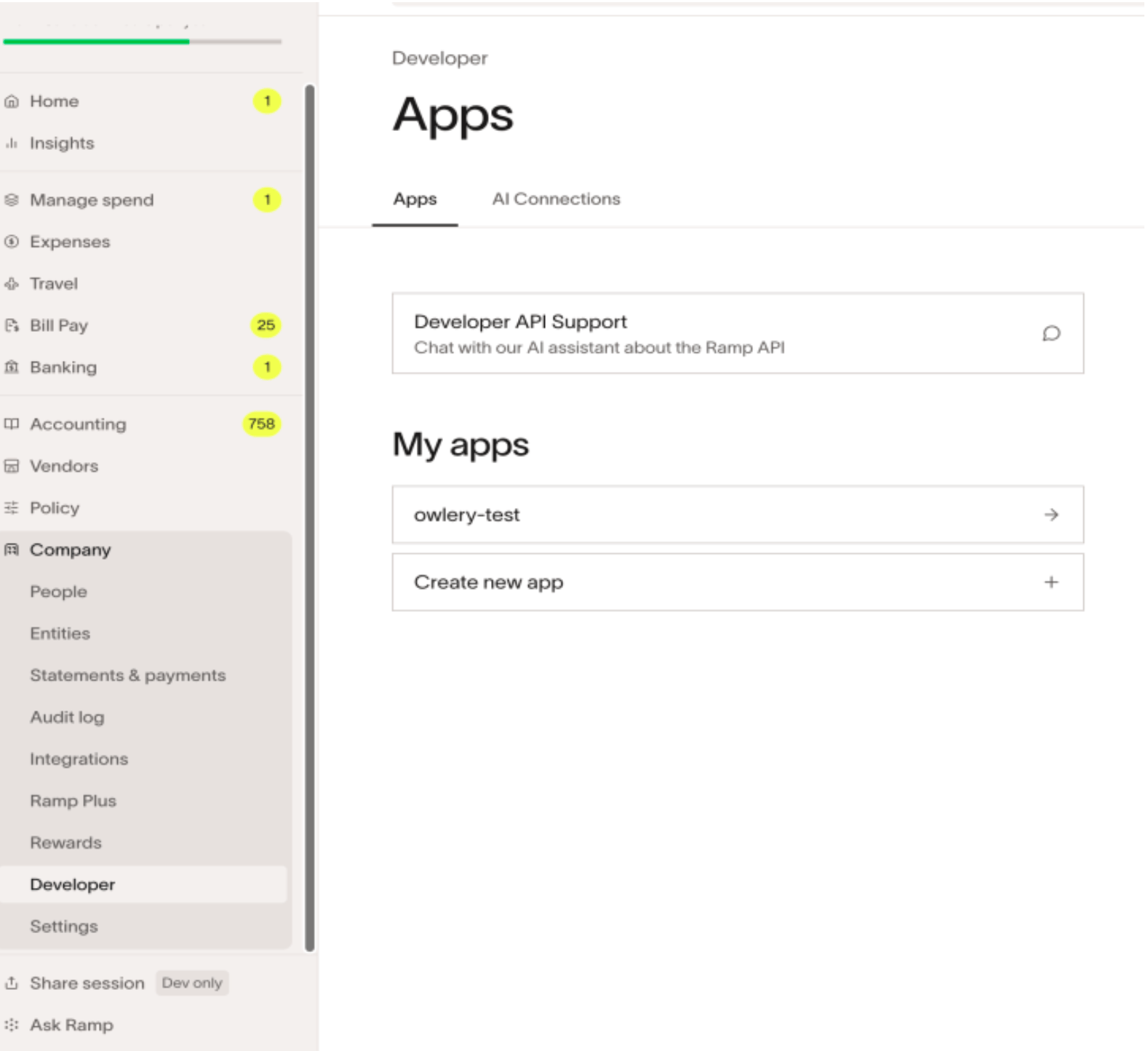
2
Name the app
Enter 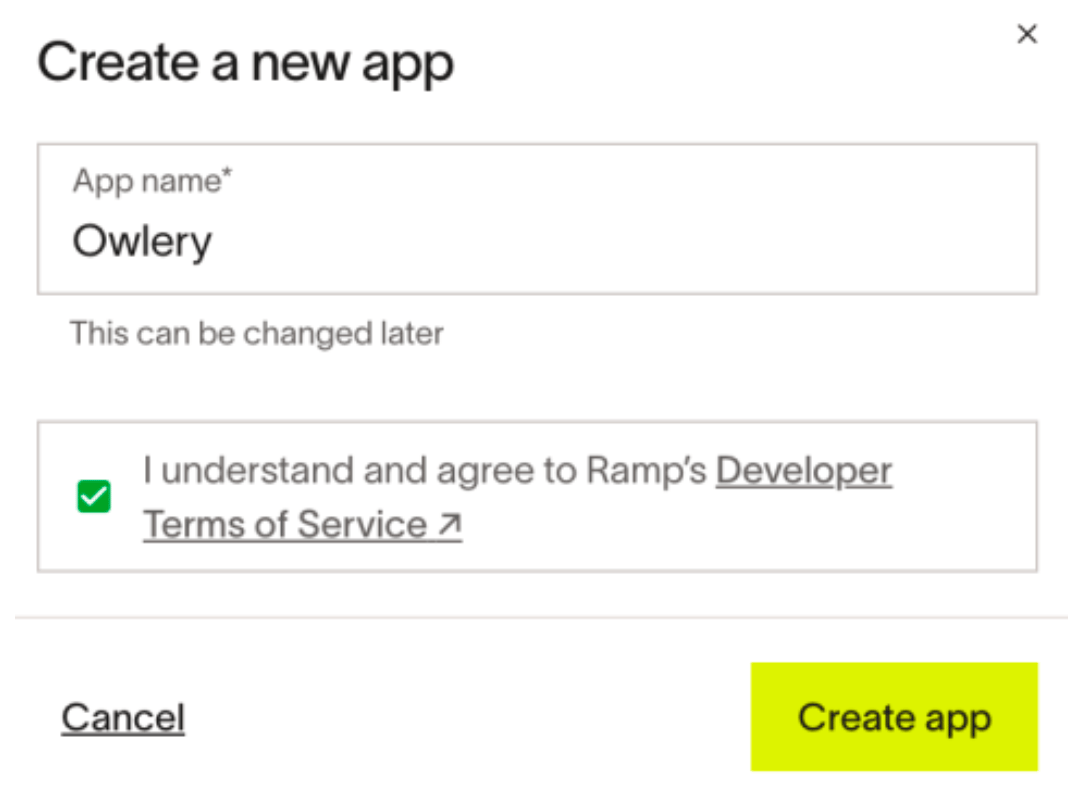
Owlery as the App name, accept Ramp’s Developer Terms of Service, and click Create app.Part 2 — Configure the app
Once the app is created, you’ll land on its settings page. Work through each section below.Redirect URI
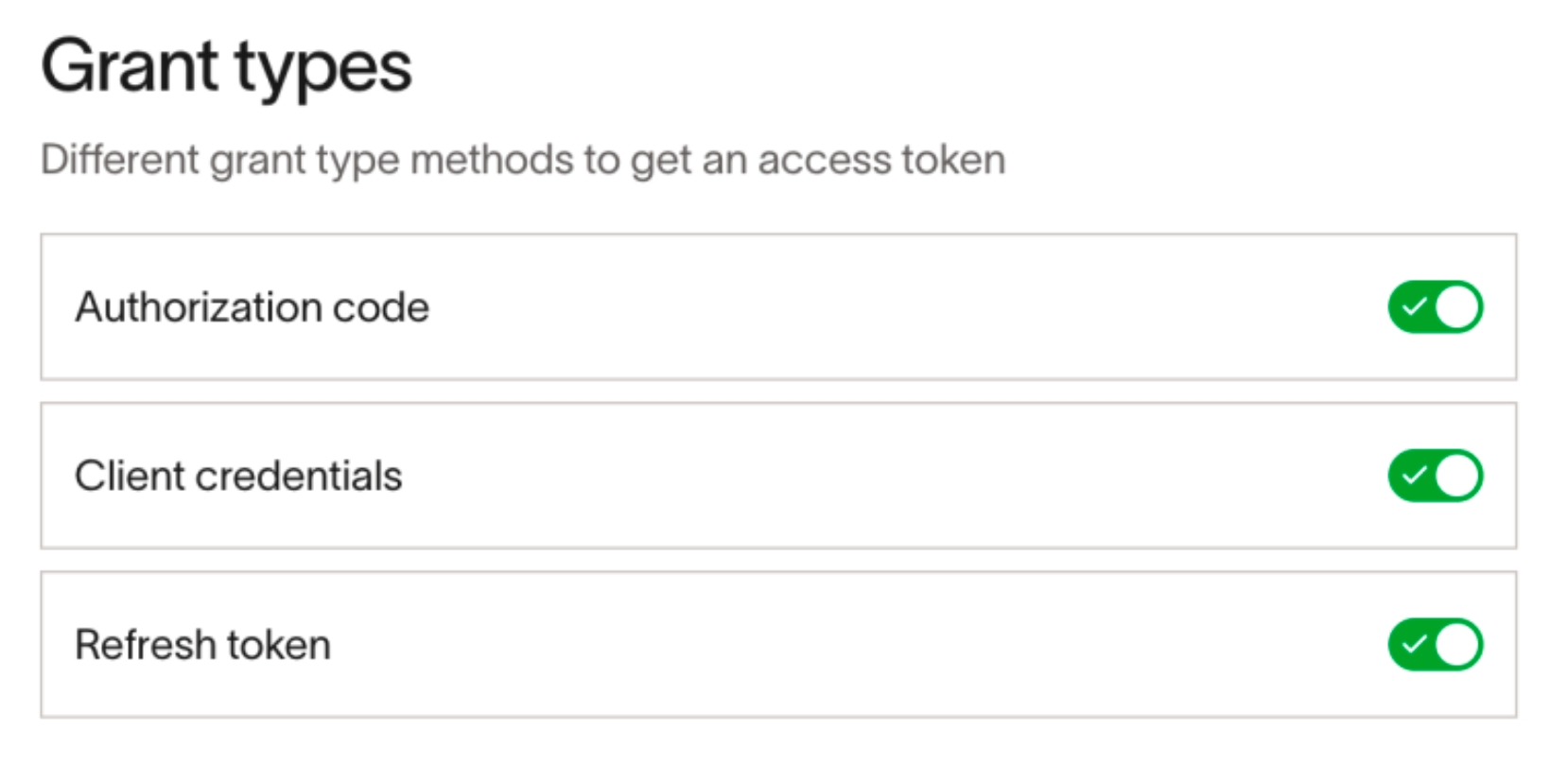
Under Redirect URIs, click + Add new URI and add this URL:Grant types
Under Grant types, enable all three toggles:- Authorization code
- Client credentials
- Refresh token
Scopes
Scroll to Scopes and click Configure allowed scopes. Add each of the following:Save your credentials
After saving the app, Ramp displays a Client ID and Client Secret. Copy both — you’ll need them in the next step.Part 3 — Connect in Owlery
1
Add Ramp as a provider
In Owlery, go to add an integration. In the search box, type 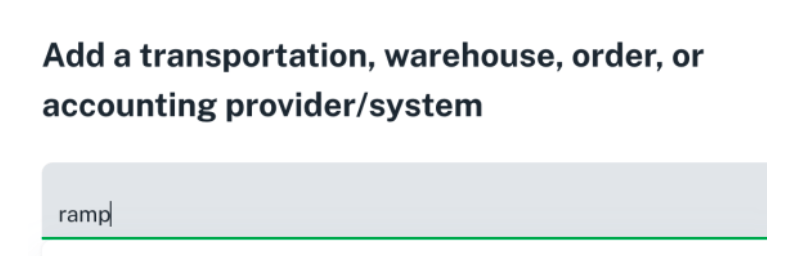
ramp and select Ramp.2
Enter your credentials
Paste the values from Ramp:
- Client ID: from your Ramp app
- Client Secret: from your Ramp app
- API URL: enter
https://api.ramp.com
3
Authorize the connection
Click Continue. You’ll be redirected to Ramp to approve Owlery’s access. Once you approve, Ramp sends you back to Owlery and the connection is live.
Troubleshooting
I don't see the Developer section in Ramp
I don't see the Developer section in Ramp
The Developer section is only visible to Ramp admins. Ask your Ramp admin to either create the app for you or grant you admin access.
The redirect fails or I get an error after approving
The redirect fails or I get an error after approving
Double-check that the redirect URI in your Ramp app matches exactly:
https://owlery.ai/api/auth/integrations/callback/ramp. Extra spaces or a missing trailing path segment will break the redirect.Owlery isn't syncing data from Ramp
Owlery isn't syncing data from Ramp
Make sure all five scopes are enabled on your Ramp app. If you added scopes after the initial authorization, you may need to disconnect and reconnect in Owlery to pick up the new permissions.